

What Restock & Merchandise does
To merchandise empty store shelves in a render with AI, upload a photo or render of the store to Restock & Merchandise, pick what the store sells and how full it should be, and press Generate. You get the same store back with its fixtures stocked with generic, unbranded product. The architecture, finishes, camera and every fixture are meant to stay exactly as they are. The tool estimates 30 to 60 seconds.
It is for designers who have an empty fit-out, a bare 3D model or a tired shop photo and need it to look open for trade: for a client presentation, a landlord pack or a first look at how a fixture scheme will feel full. If you want displays that sell rather than shelves that are simply full, read our visual merchandising guide.
What you get from it
- Only the product changes. The instruction is to keep the architecture, finishes, camera and every fixture as they are. Your design is the constant, and the stock is the variable.
- The right goods for the store. The store type chip names the product: fashion, footwear, beauty, electronics, grocery, homeware, jewellery, café or pharmacy. A footwear store should get shoes, not bags, and a café gets pastries and coffee equipment rather than clothing racks.
- You set how full it is. Fill level offers Fully stocked or Gallery / sparse, so a premium boutique with a few pieces on show is not buried in stock.
- No invented brands. Product is generic and unbranded, and signage stays blank unless you name your own brand. Nothing trademarked lands in a client presentation.
- Your direction goes last. The “Anything specific?” prompt is added after the presets, so a line such as “colour-blocked by shelf, hero products on the front plinths” outweighs the defaults.
- It is fast and cheap to repeat. A render costs 25 credits. Try fully stocked and sparse side by side, then show the client both.
How to use it, step by step
- Choose your image. A store photo or a render, with empty or tired fixtures, taken from the angle you want to keep.
- Open the tool in the Tools workspace and upload it.
- Pick the Store type. This matters most. On Auto the tool picks product that “suits the store”. A named type gives it a specific list of goods.
- Set the Fill level: Fully stocked or Gallery / sparse.
- Set People. Auto, None, Few or Many shoppers.
- Add direction in “Anything specific?” if you have it, then press Generate. Fast is a paid-only engine and adds 5 credits.
Try this prompt: “Colour-blocked by shelf, hero products on the front plinths.” Store type: Fashion · Fill level: Gallery / sparse · People: None.
A real example
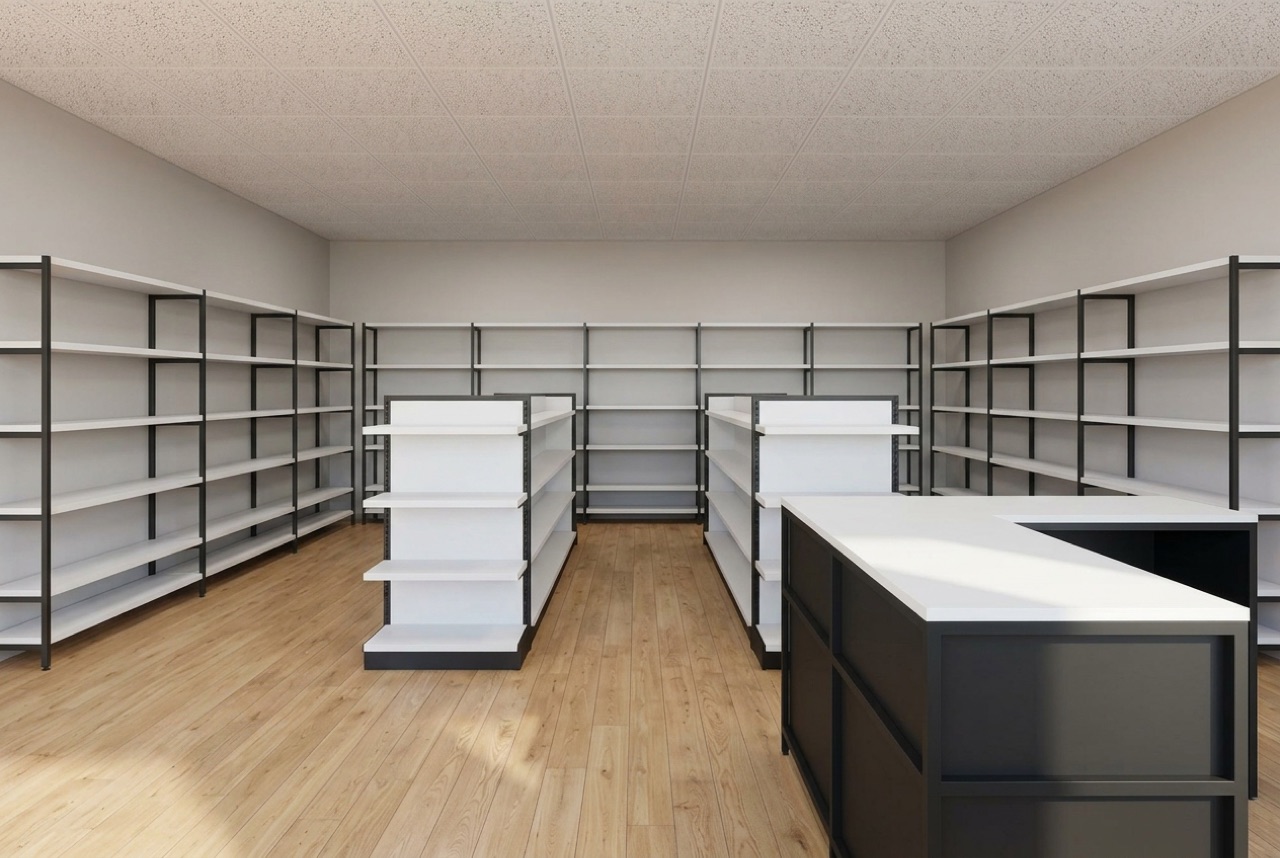
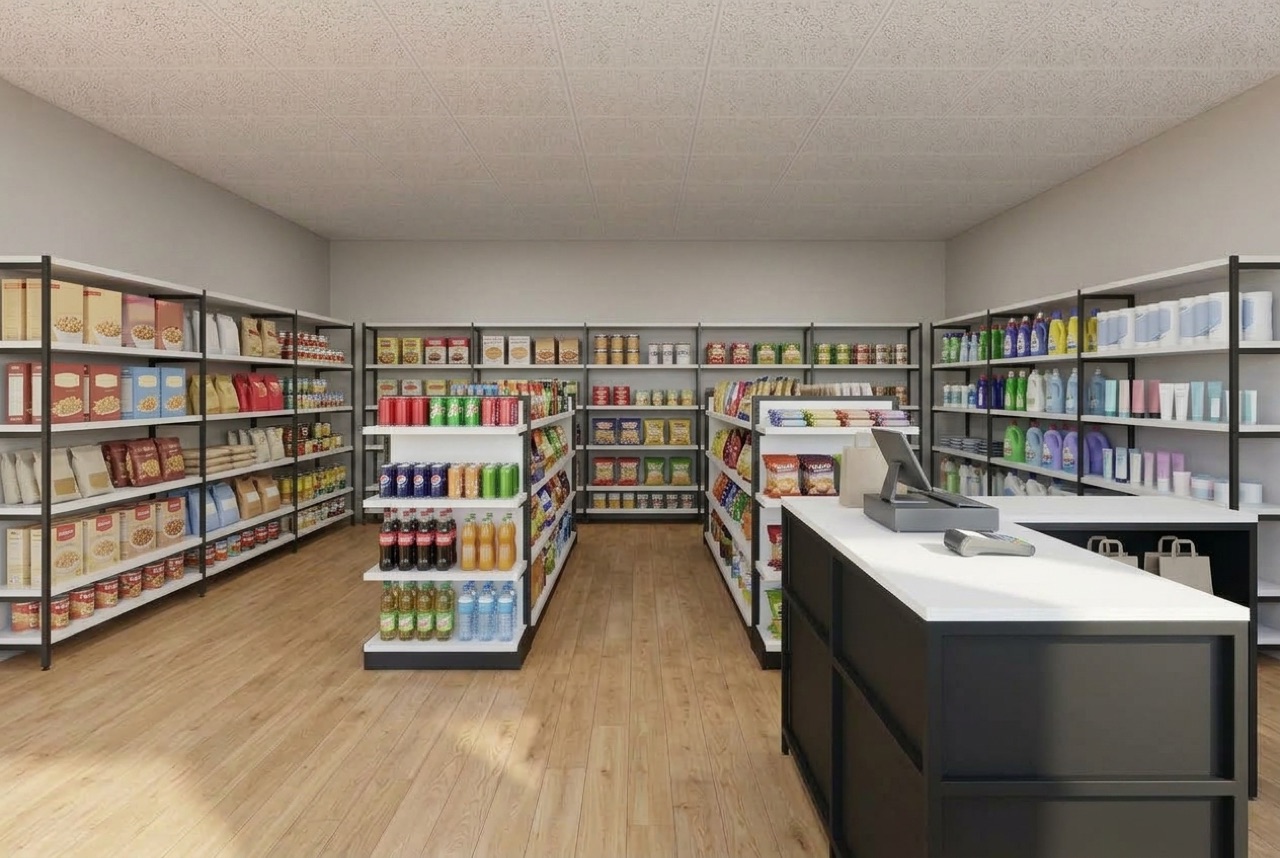
This is a render of a bare grocery fit-out with white shelving, black frames and a graphite counter, and what Restock & Merchandise made from it.
Tips for a good input
- Start from a clear, well-lit view where the shelves are visible and not hidden behind objects.
- Always set the store type. It is the difference between a believable shelf and a vague one.
- Describe grouping, not products. “Folded knitwear in colour blocks” gives the tool something to compose. A list of brand names will not be honoured, since the product stays generic.
- Use Gallery / sparse for premium formats. Fewer pieces, more space around them.
- Plan the fixtures first. If the shelves themselves are not right yet, start with our retail fixture design guide.
What it can't do
It does not produce a planogram, a stock list or real SKUs. The product is generic and made up by the AI, so use the image to judge density, colour and mood, not to specify what goes on each shelf. Packaging can show text-like marks that are not real words. As with every AI image, compare it with your input before it goes to a client.
When the shelves are full and you want specific windows, tables and walls dressed with a hero and a story, move to Visual Merchandising. To build the whole store with real fixtures in 3D, use Design Studio.
Have an empty render waiting? Open Restock & Merchandise. A render costs 25 credits, and free accounts start with 100.
FAQ
Can AI fill empty store shelves in a render?
Yes. Restock & Merchandise takes a photo or render of a store with empty or tired fixtures and returns the same store, merchandised with generic, unbranded product. The architecture, finishes, camera and fixtures are meant to stay as they are.
Will it show real brands on the shelves?
No. The product is generic and unbranded, and signage stays blank unless you name your own brand in the prompt. That is deliberate: a made-up brand on a render is worse than a blank sign when the client has their own identity.
What is the difference between Restock and Visual Merchandising?
Restock fills fixtures so the store looks open for trade. Visual Merchandising dresses a window, table or wall with a technique such as colour blocking or a pyramid, a season and a focal point. Use Restock first, then Visual Merchandising for the displays that sell.
How many credits does a restock cost?
25 credits per render, plus 5 for the paid-only Fast engine. Free accounts start with 50 credits.


