

What Imagine does
To get AI store design ideas from a text description, you write the store you have in mind and get concept images back. Imagine needs no image. Describe the store, pick a type, style, light and frame shape, and it returns two photoreal concepts to compare and build on. It takes an estimated 20 to 45 seconds.
It is for the very start of a job: a first conversation with a client, a mood direction before you have a site, or the “what if it was green velvet?” idea you want to see before you spend a day on it.
Why use it
- No input needed. You can start before you have a photo, a plan or a model. A sentence is enough.
- You get two images per run. Two takes on the same brief let you compare directions instead of judging one image in isolation.
- The store type decides the product. Pick Jewellery and the cases hold rings and watches; pick Footwear and the shelves hold shoes. The product is always generic and unbranded.
- Style, light and frame are chips. Design style offers Minimal, Luxury, Industrial, Scandi, Warm natural and Futuristic. Light offers Day, Golden hour, Evening and Night. Frame offers 16:9, 4:3, 1:1 and 3:4.
- It is cheap to explore. A run costs 30 credits for both images, and a free account starts with 50 credits.
- It leads somewhere. The image can go to Edit Image for one change, or inform a render of your real space.
How to use it, step by step
- Describe the store. Put the materials, the mood and the key fixtures in one or two sentences. Imagine frames every image as an eye-level view of an interior that is open for trade.
- Pick a Store type. Fashion, Footwear, Beauty, Electronics, Grocery, Homeware, Jewellery, Café or Pharmacy. Auto is available.
- Pick a Design style and Light. Leave either on Auto if you want the tool to decide.
- Choose the Frame. 16:9 for a presentation slide, 1:1 for a social post, 3:4 for a portrait page.
- Press Generate. You get two images for 30 credits.
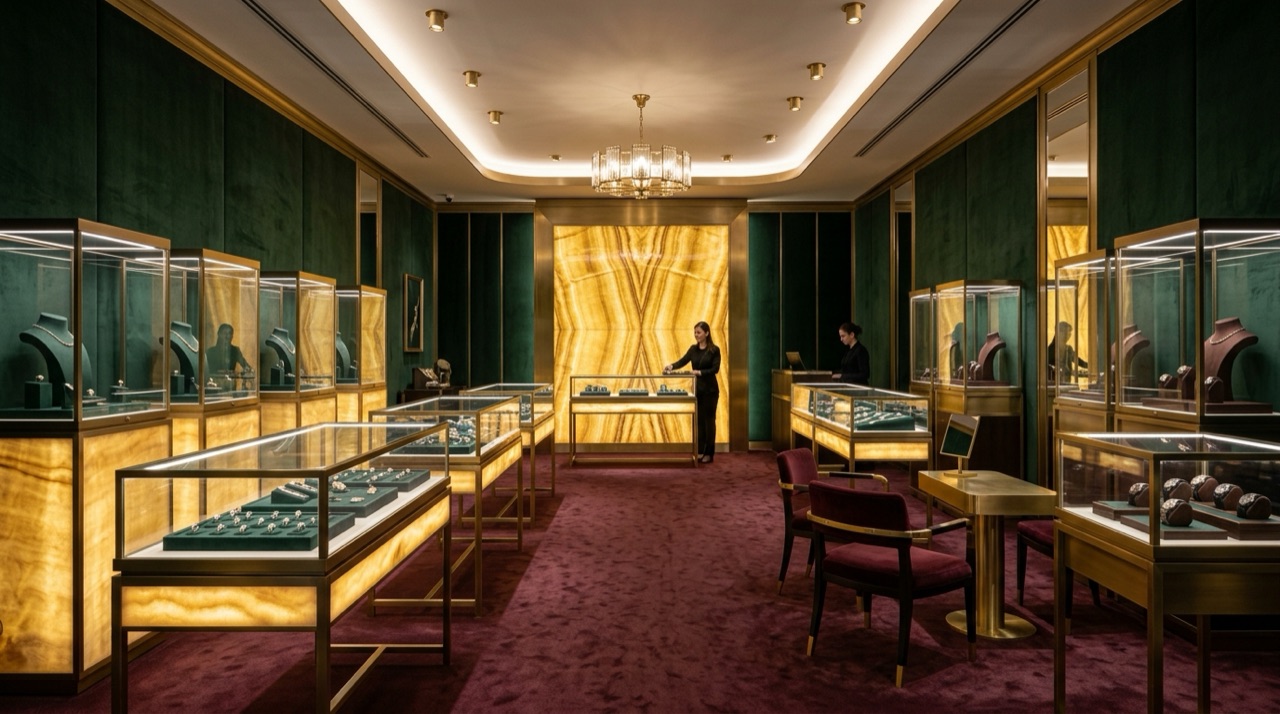
Try this prompt: “A jewellery boutique with dark green velvet walls, backlit onyx display counters, glass showcases, brass details and a deep burgundy carpet.” Settings: Store type Jewellery · Design style Luxury · Light Evening.
What to write in the sentence
A good Imagine prompt answers four questions. What is the store selling? What are the main materials? What are the one or two features people will remember? What must not be there? You do not need to answer all four every time, but the more you cover, the less the model has to guess.
| Question | Example answer |
|---|---|
| Selling what? | A sneaker store (or set Store type to Footwear) |
| Main materials? | Concrete floors, oak shelving |
| The memorable feature? | Gallery lighting over a single central plinth |
| What must not be there? | No neon, no clutter |
Put together, that is the tool's own placeholder idea: a sneaker store with concrete floors, oak shelving and gallery lighting.
A real example
This image came from exactly the prompt above, with no input image.
Tips for better prompts
- Name the materials. “Velvet walls, onyx counters, brass details” is a design. “Elegant and luxurious” is a mood.
- Describe the room, not the camera. The view is already set to eye level, so spend your words on what is in the room.
- Say what must not appear. Exclusions in your brief are treated as hard constraints.
- Do not expect signage. It stays blank unless you name a brand, so the image never puts an invented name in front of a client.
- Run it twice with one change. Swap the style chip, keep the sentence, and compare. It is the quickest way to find what you actually want.
Wondering how Imagine sits among other generators? Read our 2026 guide to AI store design generators and the RetailDesign.ai, ArchiVinci and Spacely comparison.
What it can't do
Imagine makes concept images, not plans. They carry no dimensions, structure or services, and they are not of your real space. For that, upload your own photo or 3D view to Store Interior, or lay the store out at real dimensions in Design Studio. As with any AI image, look closely before you share it: small details can be odd.
Got a store in your head? Open Imagine and write it down.
FAQ
Can AI generate store design ideas from a text description?
Yes. Imagine needs no image. You describe the store, pick a type, style, light and frame shape, and it returns two photoreal concept images to compare.
How many images does Imagine make, and what does it cost?
Each run makes two images for 30 credits. Free accounts start with 50 credits, which covers one run.
Is an Imagine image a drawing I can build from?
No. It is a concept image for agreeing direction. It carries no dimensions, structure or services, so the real design still comes from drawings made for your actual space.
What should I do after I find a direction I like?
Change single details with Edit Image, or take the look into a real space with Store Interior, which starts from your own photo, sketch or 3D view.


