

What Storefront does
AI storefront design, or AI shopfront design, means taking a facade photo, sketch or 3D view and getting a photoreal exterior back. Storefront does that. Upload your shopfront, pick the setting, time and weather, and it returns a photoreal storefront that keeps the facade geometry, openings and camera of your input. Signage stays blank unless you name the brand.
It is for the part of a job where the outside has to sell the idea: a landlord submission, a fascia study, a client who cannot read a clay model. A run takes an estimated 30 to 60 seconds.
Why use it
- It keeps your facade. The facade geometry, openings and camera of your input stay as they are, so the render is of your design, not a lookalike.
- It starts from what you have. A photo of the unit, a sketch or a 3D view are all accepted. An untextured clay model is enough.
- You set the scene. Time of day offers Auto, Day, Golden hour, Evening and Night. Weather offers Auto, Clear, Overcast and Rainy. Setting offers Auto, High street, Mall and Standalone. People can be none, few or many.
- Store type decides the window. The window display shows generic, unbranded product that suits the store type you pick, from Fashion and Footwear to Jewellery, Café and Pharmacy.
- No invented branding. Fascia and signage stay blank unless you name your brand, so you never show a client a name that is not theirs.
- Fast engine for quick looks. Fast renders in about half the time on a lighter model. It is included with any paid plan and adds 5 credits to the 25 for a render.
How to use it, step by step
- Upload your facade. A photo, a sketch or a 3D view of the shopfront. Shoot or export it straight on if you can.
- Pick Store type and Design style. Store type sets the product in the window. Design style offers Minimal, Luxury, Industrial, Scandi, Warm natural and Futuristic.
- Set Time of day and Weather. Golden hour and Clear suit a hero image. Night shows off a lit window.
- Choose Setting and People. High street, Mall or Standalone, and how many passers-by.
- Write the prompt. Name materials and say what to leave out.
- Press Generate. Free accounts start with 50 credits, and a render costs 25.
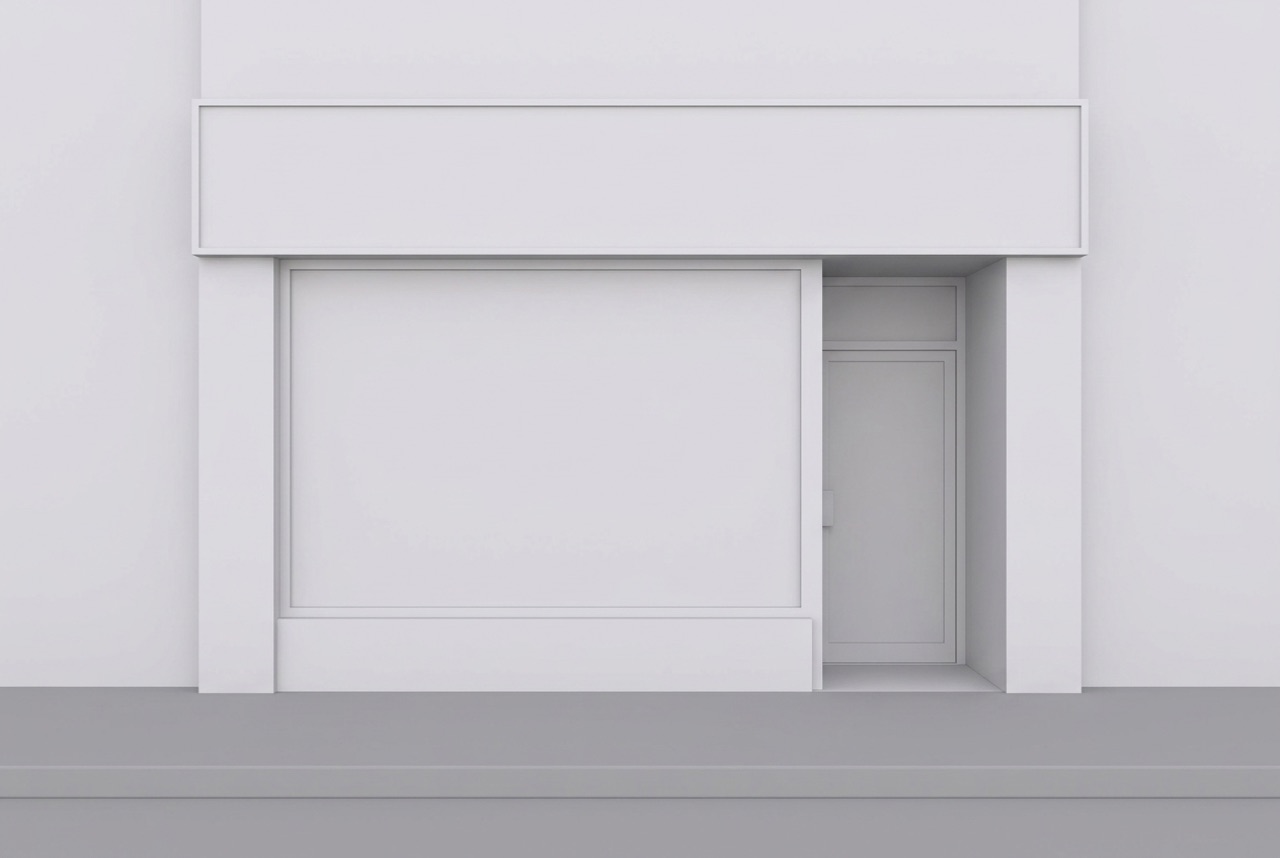
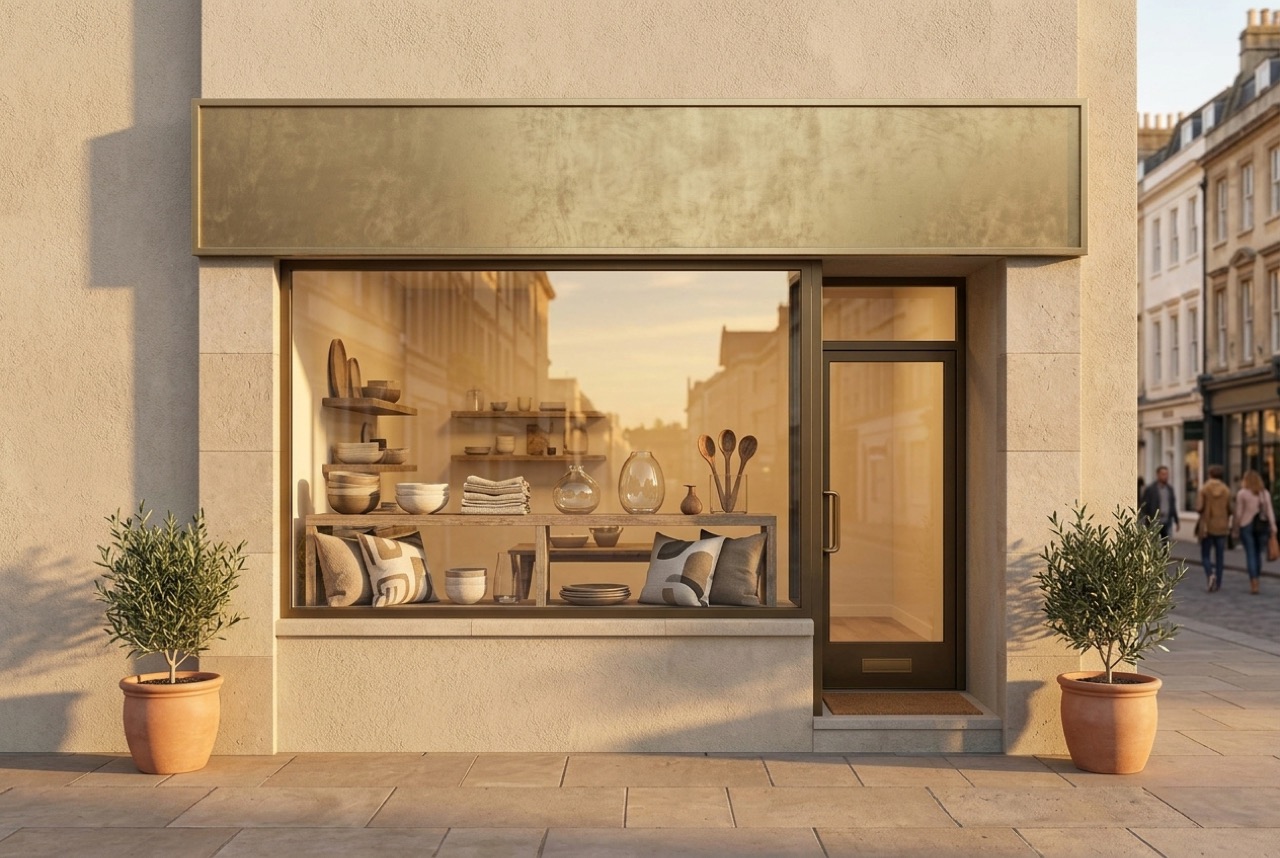
Try this: upload a clay 3D view of a shop front. Prompt: “Full-height glazing, bronze frame, recessed entrance. No awnings.” Settings: Store type Homeware · Design style Warm natural · Time of day Golden hour · Weather Clear · Setting High street · People Few.
Reading the settings together
The scene chips work as a set. Time of day sets the sky and how lit the shopfront is, Weather sets the sky and ground conditions, and Setting sets where the store sits. A Mall setting with an Evening time reads very differently from a High street setting at Golden hour, even with the same facade.
Run the same facade twice to answer a client's question. Day and Clear shows how the unit reads to a passer-by at lunchtime. Evening or Night shows how the window works as a lit box. Rainy is a useful test of whether the entrance still looks welcoming. In each case the facade is held, and only the scene around it changes.
A real example
This is a clay model of a shopfront and the render Storefront made from it. The fascia, window, door and recess are where the model put them. The fascia is blank, because no brand was named.
Tips for better shopfronts
- Choose the light for the story. Golden hour flatters stone and brass. Evening or Night is for a glowing window.
- Describe the facade materials. “Bronze frame, honed stone, full-height glazing” gives a clearer result than “modern shopfront”.
- Exclude what you do not want. “No awnings” is treated as a hard constraint.
- Match the setting to the site. A mall unit and a high street unit read differently, so set it honestly.
- Plan the window separately. Once the facade is right, see how a window can be dressed in our visual merchandising guide.
Designing for a mall? Read our mall facade design guide, and compare the inside with Store Interior so the two feel like one store.
What it can't do
It makes a picture of a shopfront, not a planning drawing. It does not check signage rules, glazing specs, accessibility or whether the landlord will approve your design, and sizes in the picture are not measurements. It is an AI image, so compare it with your input before you show a client, especially the door, glazing and fascia proportions. Product is generic and unbranded. For the full store inside, plan it in Design Studio.
Ready to see the front of your store? Open Storefront and upload your facade.
FAQ
Can AI design a storefront from a facade photo, sketch or 3D view?
Yes. Upload a photo, sketch or 3D view of the shopfront. Storefront returns a photoreal exterior that keeps the facade geometry, openings and camera of your input.
Does the render put a brand name on the fascia?
Not unless you name the brand in your prompt. The fascia and signage stay blank, and the window display shows generic, unbranded product.
Can I choose the time of day and the weather?
Yes. Storefront has chips for Time of day (Auto, Day, Golden hour, Evening, Night), Weather (Auto, Clear, Overcast, Rainy) and Setting (Auto, High street, Mall, Standalone).
How long does it take?
The tool estimates 30 to 60 seconds. The Fast engine, included with any paid plan, renders in about half the time on a lighter model.


