

What Style Transfer does
AI style transfer for an interior render means giving the tool two images: your design, and a reference whose look you want. Style Transfer returns your layout restyled in the reference's materials, colours and lighting. The reference's products and furniture are meant to stay out, and your store keeps its own products, store type and merchandise. The tool estimates 30 to 60 seconds.
It suits designers who know the mood a client wants, such as dark velvet, pale stone or warm timber, and want to see it on their own plan before drawing anything. The reference can be any image with the right atmosphere, including a render you made in Imagine.
What you get from it
- Only the look moves. The prompt tells the tool to take only the reference's materials, colours and lighting. The tool is told that your products, store type and merchandise stay exactly as they are in your image, so a footwear store stays a footwear store.
- You set the strength. Style strength offers Subtle, Balanced and Strong. Use Subtle to nudge a scheme, and Strong when the reference is the brief.
- You choose how much layout to keep. The Structure chip has Keep layout, which holds the camera, walls and fixture positions of your image, and Free, which lets the layout follow the reference where it suits it.
- The reference can be anything. A photo, a moodboard image, another render. The tool asks only for an image whose materials, colours and light you want.
- Your words come last. A line such as “take the materials and light, not the furniture” is added after the presets, so it outweighs them.
- Compare directions cheaply. One render costs 25 credits. Run the same design against three references and show the client the three moods.
How to use it, step by step
- Open the tool and upload your design under Input image: a photo, a render or a viewport capture.
- Add the Style reference. This is the second upload, for the image whose materials, colours and light you want.
- Set Style strength: Subtle, Balanced (the default) or Strong.
- Set Structure: Keep layout (the default) or Free.
- Write a prompt only if you need to steer it, for example to say which parts of the reference to ignore.
- Press Generate. Fast is a paid-only engine and adds 5 credits.
Try this prompt: “Take the wall colour, floor and lighting from the reference. Keep my fixtures and my products.” Style strength: Balanced · Structure: Keep layout.
A real example
The input is a bright electronics store with white walls, a concrete ceiling and light oak tables. The reference is a dark jewellery boutique with velvet walls and onyx counters. The output is the electronics store in the reference's look.
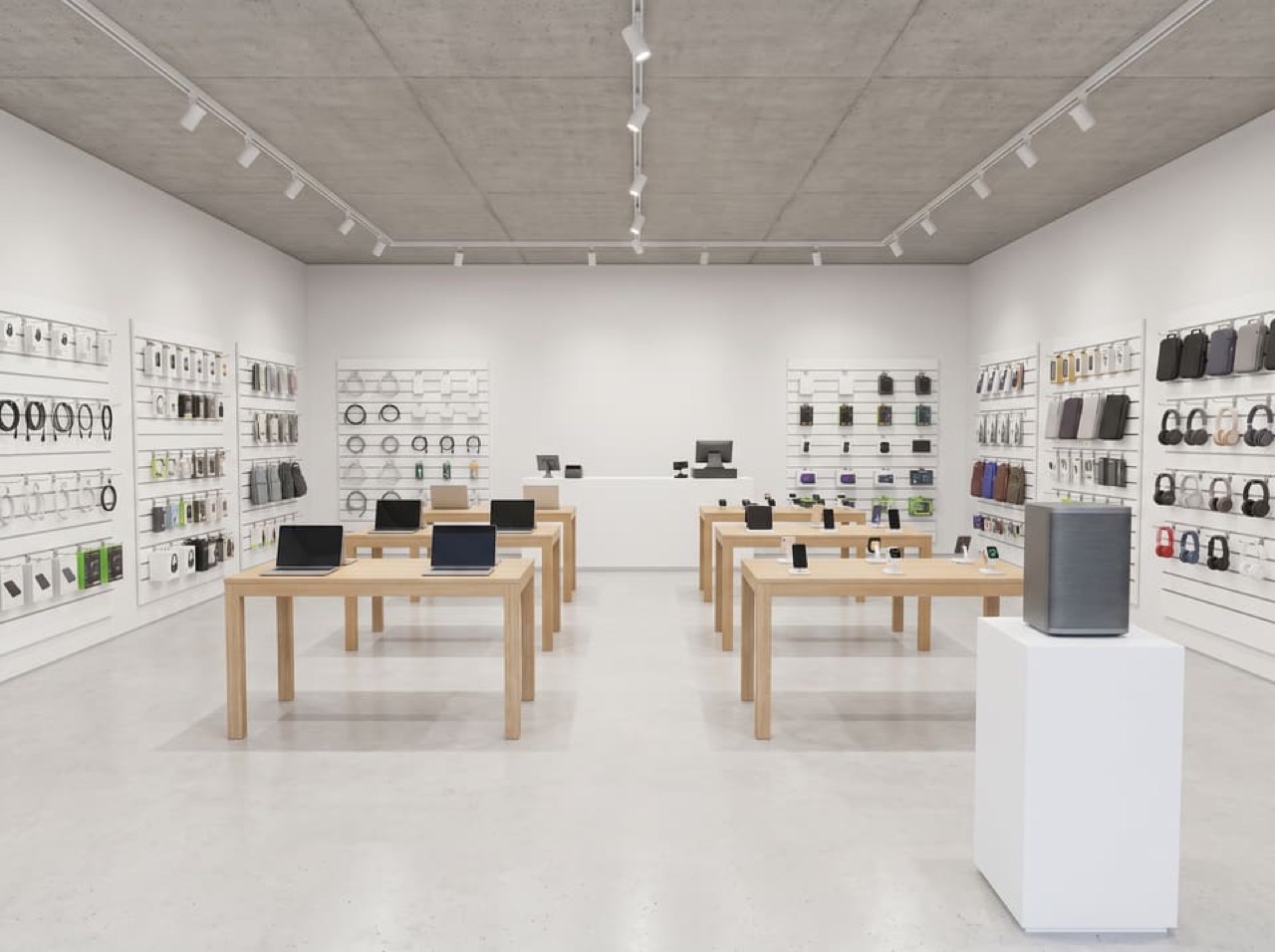
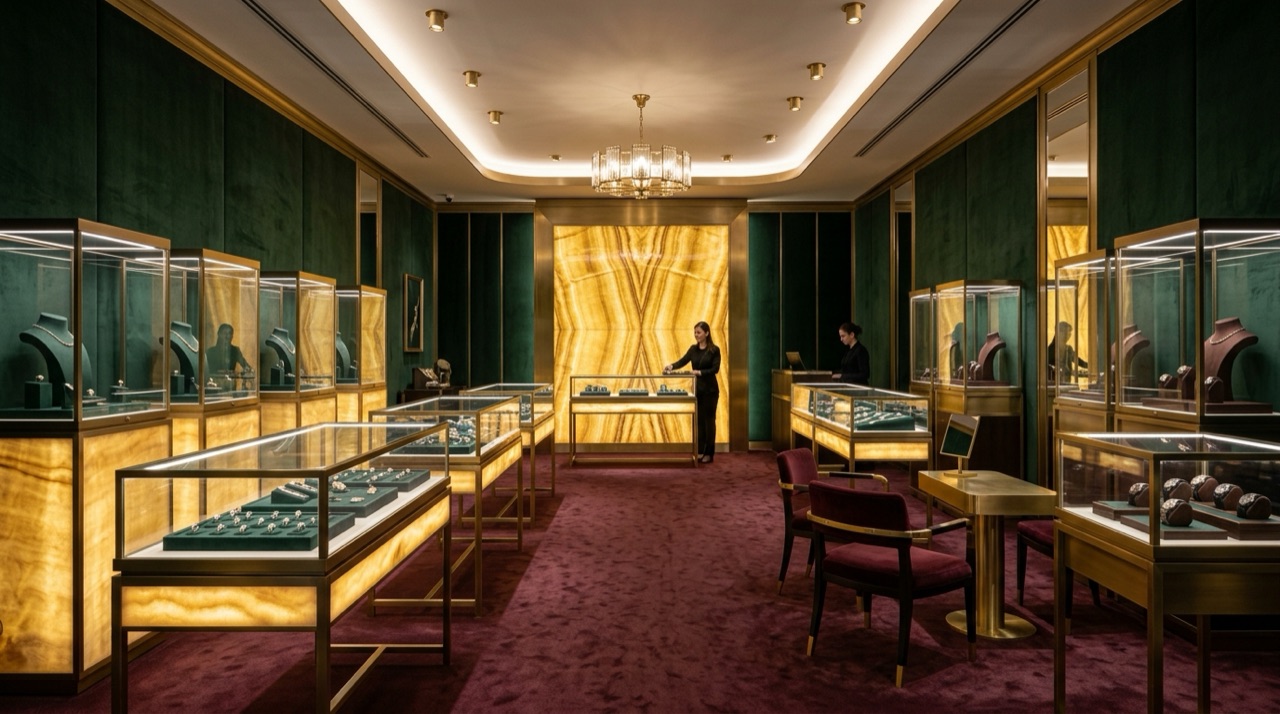
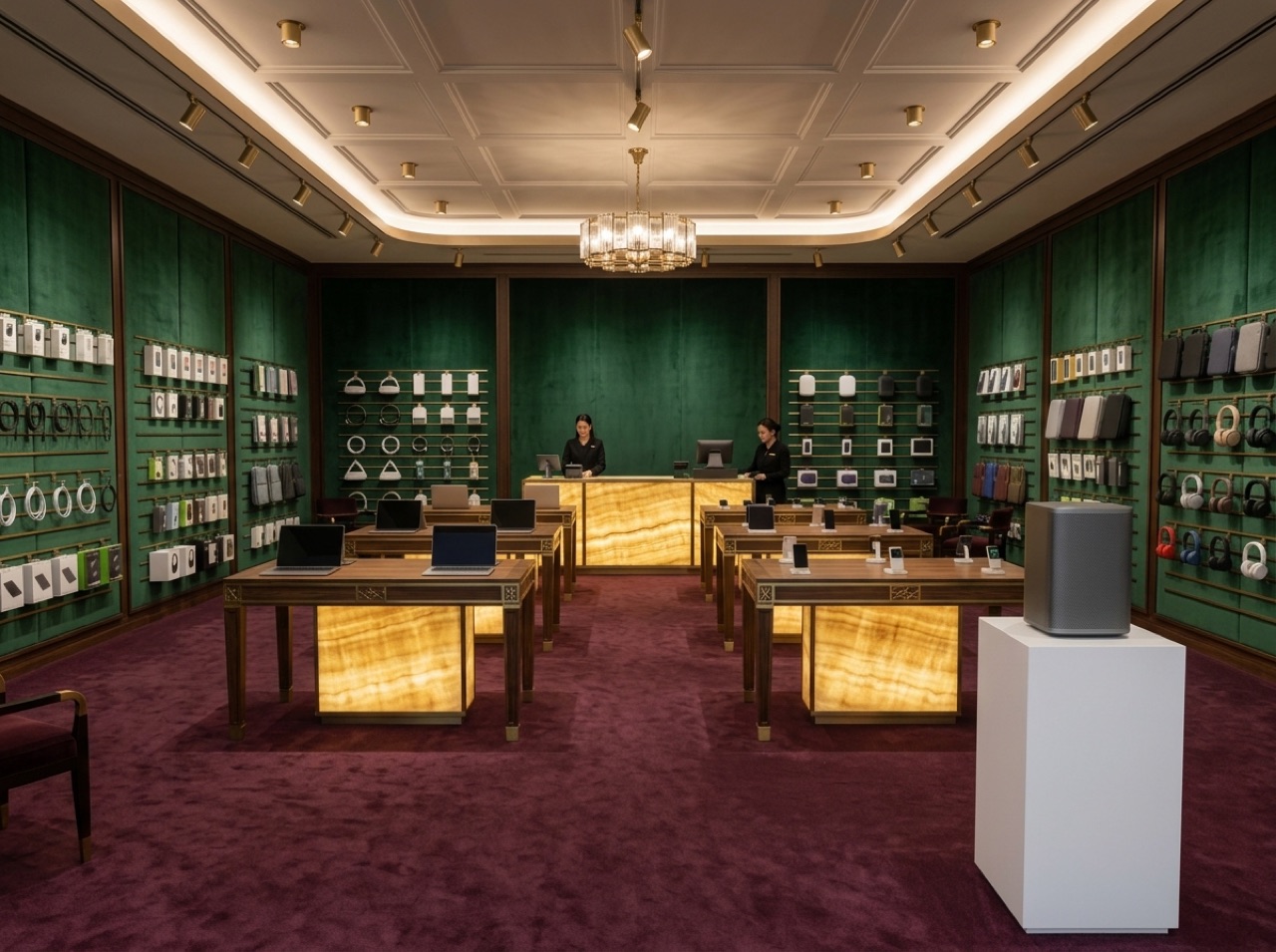
If you want less of the reference to carry over, lower the Style strength.
Tips for good inputs
- Choose a reference with one clear idea. A reference with strong materials and light gives the tool something to carry. A busy image gives a muddy result.
- Pick a reference of a similar space. A store interior as a reference for a store interior is easier to read than a landscape.
- Say what to leave out. If the reference has furniture you love, you still have to decide whether you want it. By default it stays out.
- Use Keep layout when the plan is agreed. Use Free only when the layout is still open.
- Try all three strengths on the same pair before you decide on a direction.
If the style belongs to a client's brand and not just a mood, save it as a brand and use Apply My Brand instead. It applies written rules (palette, materials, fixtures) where Style Transfer copies a picture.
What it can't do
It reads a look from a picture, so it cannot know a material's real name, supplier or finish. The result is an AI image: details such as ceilings, people and furniture can be added or changed, and signage is left blank unless you name a brand. Check it against your original before it goes to a client. To change one detail afterwards, use Edit Image.
For a wider view of where this sits among AI design tools, read our comparison of AI store design generators.
Have a reference in mind? Open Style Transfer. Free accounts start with 50 credits, and a render costs 25.
FAQ
What is AI style transfer for interiors?
You upload your own design and a reference image, and the tool restyles your design in the reference's materials, colours and lighting. Your layout, products and store type are meant to stay yours. It is a way to test a direction on your own space.
Does the reference's furniture end up in my store?
It should not. The instruction is to take only the reference's materials, colours and lighting, and to keep the reference's products and furniture out. AI can still add details, so check the result for anything that was not in your original.
What do Subtle, Balanced and Strong do?
They set how strongly the reference's look carries over. Subtle borrows less, Strong borrows more, and Balanced sits between them. Balanced is the default.
Can I change the layout as well?
Yes. The Structure chip has two settings. Keep layout holds the camera, walls and fixture positions of your image. Free lets the layout follow the reference where it suits it.


